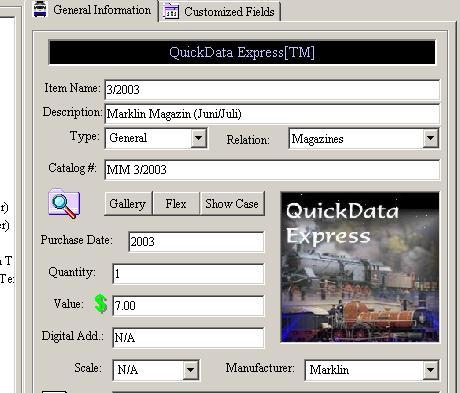
It is recommended to assign to every item a Showcase image.
This is useful for general item representation.
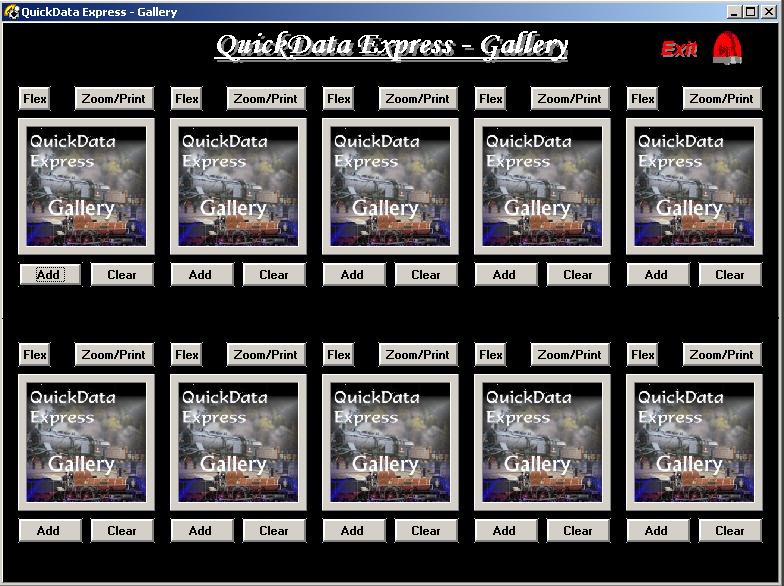
QuickData Express™ provides you with a gallery of ten (10)
additional images which is mainly useful for items. You may take picture(s) of
your item from different angles and store these images in the gallery.
Setting
the Gallery Images
At any time while Adding or Editing a category, sub-category or an item you may
store or remove images from the gallery. While Adding or Editing click on the:
'Gallery' button.

The Gallery window includes ten (10) images. Click on the:
'Add' button to add an image to the gallery. The image file will be imported
into
QuickData Express™ images folder. Click on the: 'Clear' button
to delete the image from the gallery.
Please Note: The image
file will be DELETED from
QuickData Express™ images folder.
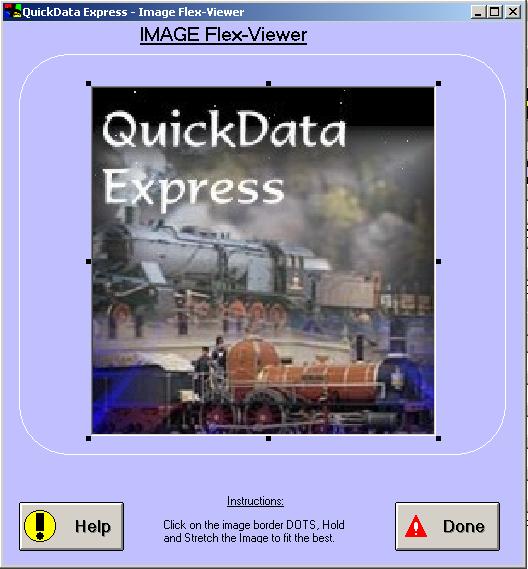
Click on the: 'Flex' button to view the desired image in the Flex
Viewer. The Flex Viewer is for VIEWING purposes only and does not save your
stretched image.
Click on the: 'Zoom/Print' button to use the Zoom Technique for
details. The Zoom feature also provide you with hard copy of your image option.
-
Please Note:
To Complete the
Addition or Edition, Close the Gallery form and
-
operation Click on the flashing 'Save'
button on the main window!
The Synthesis Viewer (Zoom and Print)
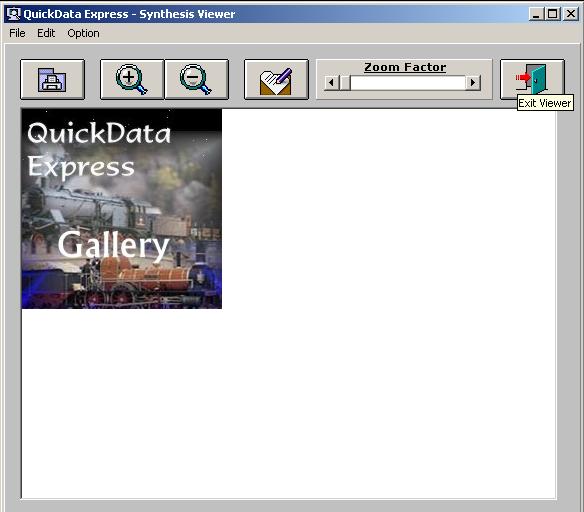
QuickData Express™ provides you with an advanced Zoom feature.
From the gallery window click on the: 'Zoom/Print' button. The Synthesis View
window will open. Use the window buttons, 'Zoom In' and 'Zoom Out' to view your
item's details.
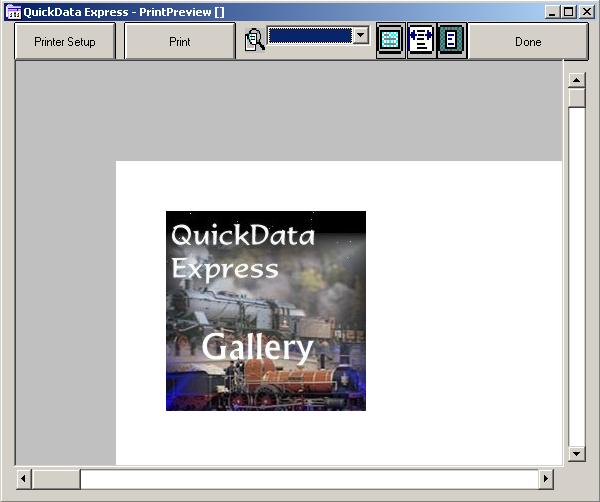
Print Preview
When using the 'Print' option, a 'Print Preview'
window will open. User may adjust printing options and proportionality factors
for desired results.
Flex Viewer
QuickData Express™ is equipped with an advanced graphics technology
called: Flex View™. Using our Flex Viewer system user can stretch desired image
for best details. The image can be stretched within the Flex Viewer window only!
The image can not be saved but for viewing purposes only!
Usage: The Flex Viewer is available for Showcase and Gallery
images viewing. Simply click on the 'Flex Viewer' to view the image.
Image Stretch: Left Click and HOLD on each of the dots of the
image (Eight Dots). Then Stretch the image for best details.
For
any questions please email us at: info@tayden.com