Main | Overview | Setups | Add | Edit | Delete | Search | Fields | Images | Reports-Export | Statistics |  | Backup | Support


QuickData Express™  Database System

New Era in Database Solutions


General Fields


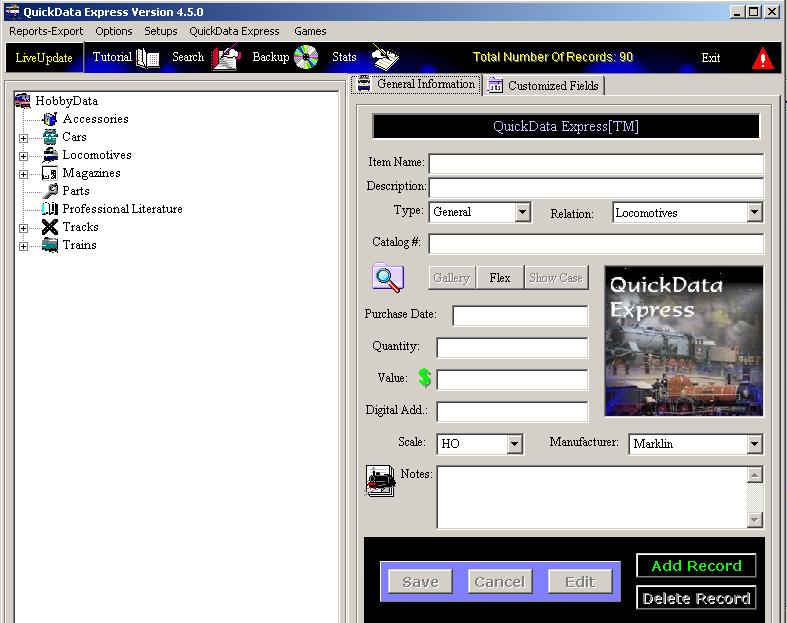
       QuickData Express™ provides you with fixed and customized fields. Fixed Categories are provided for items storage. It is also recommended to assign a Showcase image for identification. Items are equipped with a variety of fields to collect the most vital information.

Usage: When you Add or Edit an item the program will place the cursor at the first field (Item name). Type the item's details and move the cursor to the next field simply by clicking on the TAB key or Left Click with the mouse on the desired field.

The next image applies to QuickData Express™ version 4.5.0


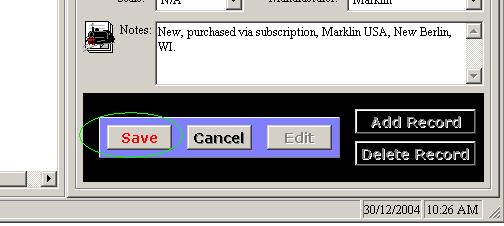
To Complete the Addition or Edition operation
Click on the flashing 'Save' button!


Customized Fields

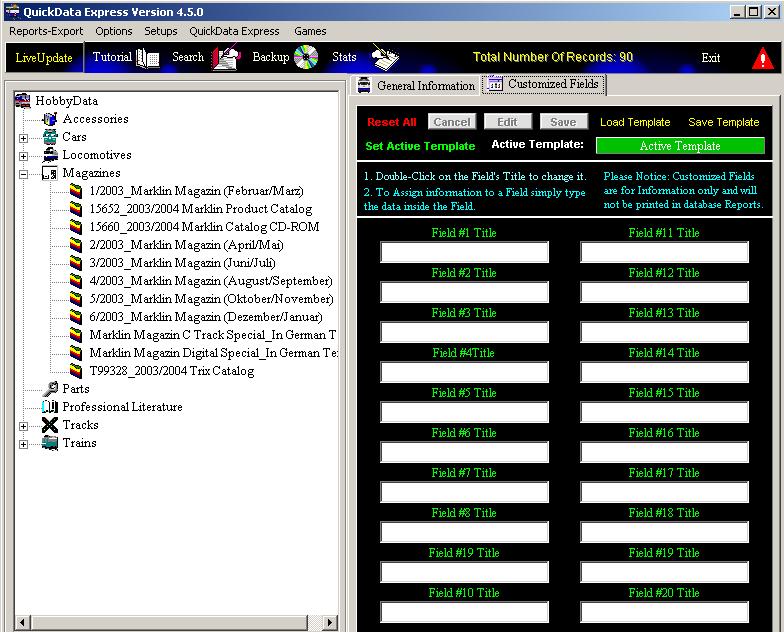
QuickData Express™ provides you with twenty (20) customized fields. You can customize the field title and content. 

Simply click on the 'Customized Fields' tab.
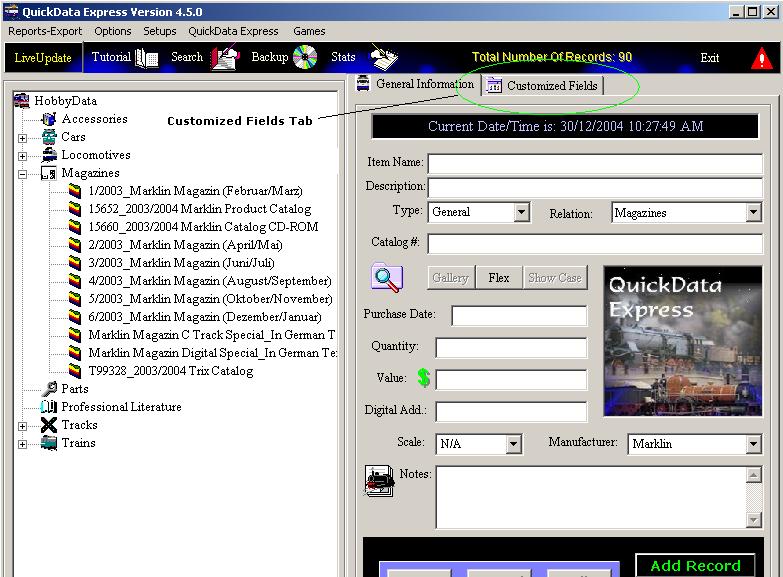
Please Note: Customized Fields are Length-Limited for Report Print purposes.


Customized Fields Panel



Defining a Customized Field

1. Click on the field's Title to change it's contents.

2. Type at the field's Text area the Field content.

3. When you are done with Customized Fields assignment you may save this setup as a Template for future use.

    To save this configuration as a template

    1. Click on the Save Template button. Assign a meaningful name and save.

    To Load a Template

     1. Click on the Load Template button. Load the Desired Template.

     To SET a configuration as a Template

     1. Click on: 'Set Active Template button. The Active Template is the recent assigned customized fields   configuration.


To Complete the Addition or Edition operation
Click on the flashing 'Save' button!


For any questions please email us at: info@tayden.com     


 Tayden Design Web Site | Contact us